
Getting started
Understand the Scriboflow dashboard
Learn how to navigate the dashboard and find contracts, activity and key actions.
Last updated August 25, 2026
The dashboard gives you a quick overview of your organisation’s contracts and recent activity.
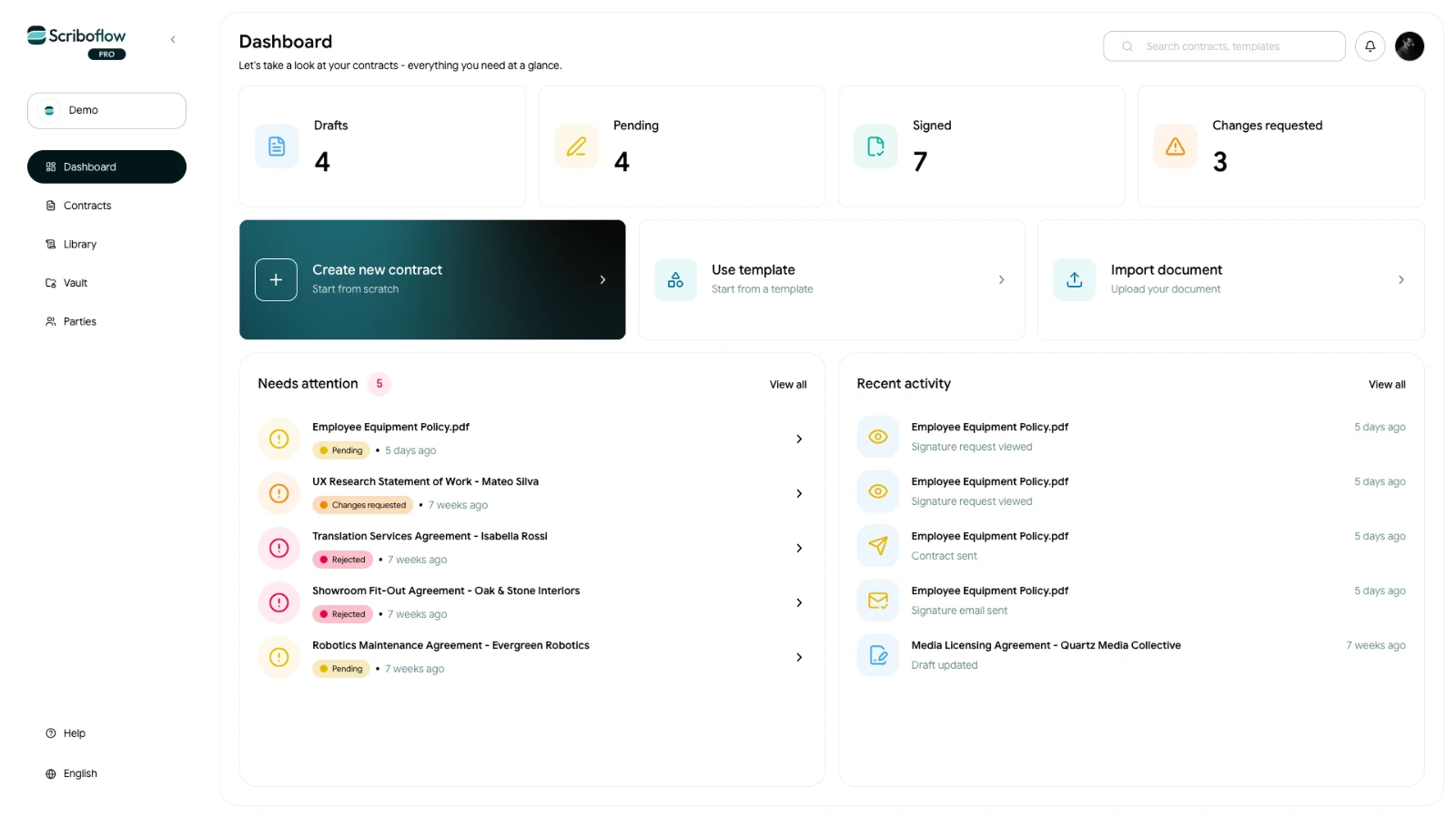
Contract overview
The cards at the top show how many contracts are currently in each status:
- Drafts: Contracts that have not yet been sent
- Pending: Contracts awaiting action from one or more recipients
- Signed: Completed contracts signed by all required parties
- Changes requested: Contracts returned by a recipient with requested changes
Select a card to view the corresponding contracts.
Create or upload a contract
You can start a contract directly from the dashboard in three ways:
- Create new contract: Start from scratch
- Use template: Start with a ready-made or saved template
- Import document: Upload your own contract
Needs attention
This section highlights contracts that require action or follow-up. Select a contract to open it and see what needs to be done.
Recent activity
Recent activity shows the latest actions taken across your organisation’s contracts, helping you keep track of what has changed.
Search and navigation
Use the search bar to find contracts and templates.
The sidebar provides access to:
- Contracts: View and manage all contracts
- Library: Access templates, clauses and data fields
- Vault: Securely store reusable documents, annexes and schedules
- Parties: Manage the people and organisations used in your contracts
You can also access notifications, account settings, the Help Center and language options from the dashboard.