
Security, privacy and data
Set up multi-factor authentication
Add an authenticator app as a second sign-in step for your Scriboflow account.
Last updated August 25, 2026
Multi-factor authentication, or MFA, adds a code from an authenticator app as a second sign-in step.
Enable MFA
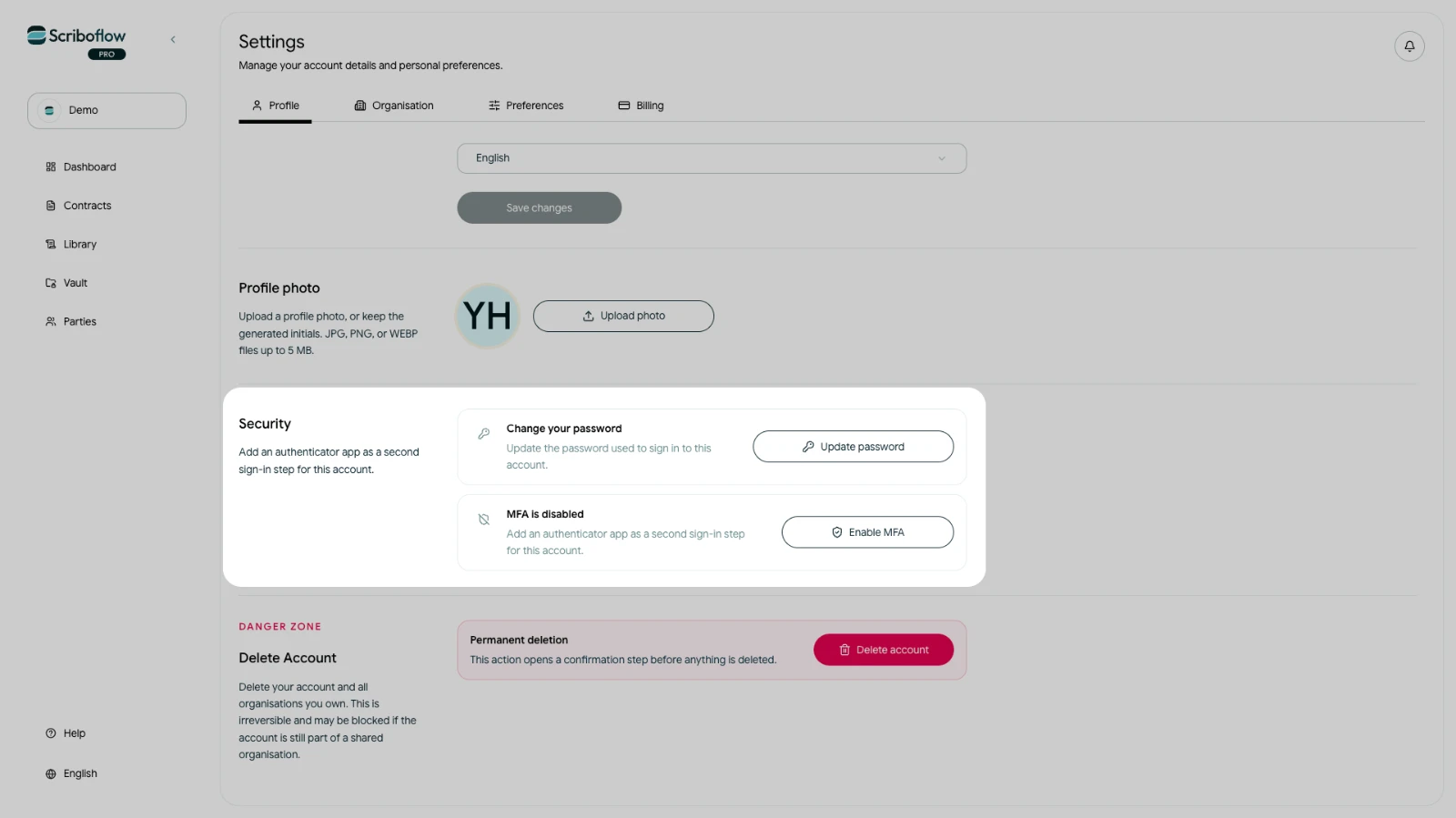
- Open Settings and select Profile.
- Find the Security section.
- Select Enable MFA.
- Scan the QR code with an authenticator app. You can also copy the setup key into the app manually.
- Enter the six-digit code from the authenticator app.
- Select Enable.
After setup, Scriboflow asks for a current six-digit authenticator code when additional verification is required.
Disable MFA
Open the same Security section and select Disable MFA. Scriboflow may ask you to verify your current session before completing the change.
Keep access to the authenticator app after enabling MFA. If you lose access and cannot sign in, contact Scriboflow for help. Do not send your authenticator setup key or codes to anyone.