
Creating and managing contracts
Edit and save a draft contract
Return to an unfinished contract, update it and confirm that your changes are saved.
Last updated August 25, 2026
You can leave an unfinished contract and return to it while it is still a draft.
Open the draft
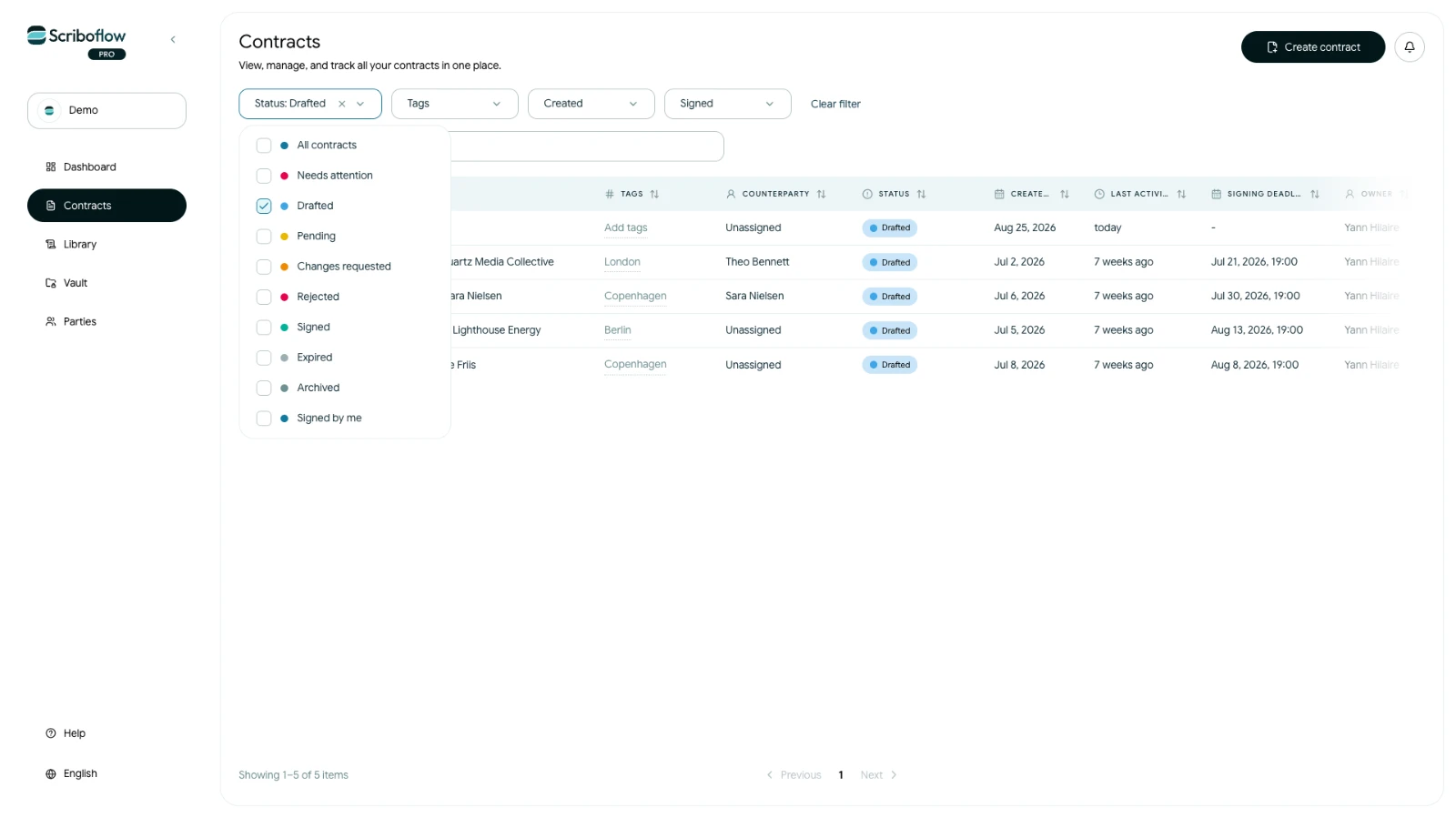
- Open Contracts.
- Filter by Drafted if needed.
- Select the contract, or open its actions menu and choose Edit.
The contract opens at its current step. Use the step navigation to return to earlier sections such as Parties, Terms or Attachments.
Make your changes
Update the contract name, parties, terms, attachments or signature setup as needed. Scriboflow saves supported draft changes automatically while you work. The status near the top of the contract shows when the latest changes were saved.
If Scriboflow temporarily saves a change locally, keep the page open until it has synchronized. If a save error appears, try again before continuing.
Before leaving the draft
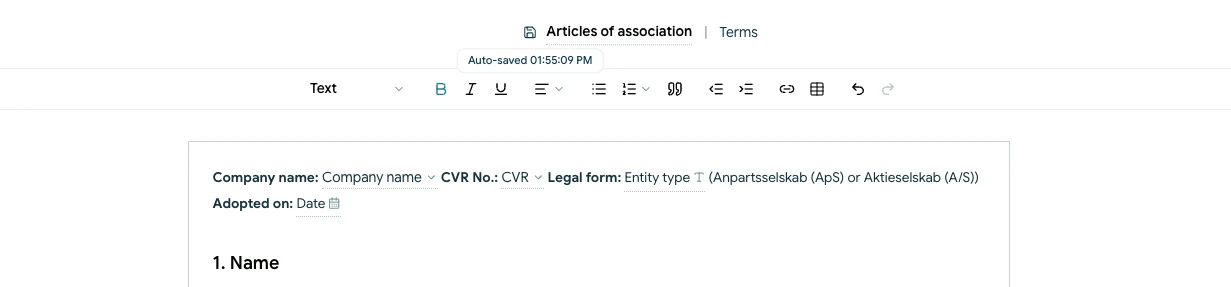
- Check that the saved status is current.
- Use Preview to review the latest document.
- Continue to the next step only when the current section is complete.
Once the contract has been sent, the current version is locked against normal editing. If a recipient requests changes, follow the change-request flow instead.